
The internet can be a wonderful place for children to learn, create, play, and connect.
But it can also lead them toward content they are not ready to see: adult material, violent videos, gambling sites, unsafe chat rooms, dangerous challenges, drug-related searches, or harmful communities. That is why many parents look for keywords to block for parental control.
Keyword blocking is not perfect, but it can be a useful layer of protection. When combined with parental control apps, device settings, SafeSearch, router filters, and honest conversations, keyword blocking can help reduce accidental exposure to harmful content. 🌿
This guide explains which categories of keywords parents may want to block, how to build a smarter keyword list, and why keyword filters should be used carefully instead of blindly blocking everything.
What Are Keywords to Block for Parental Control?
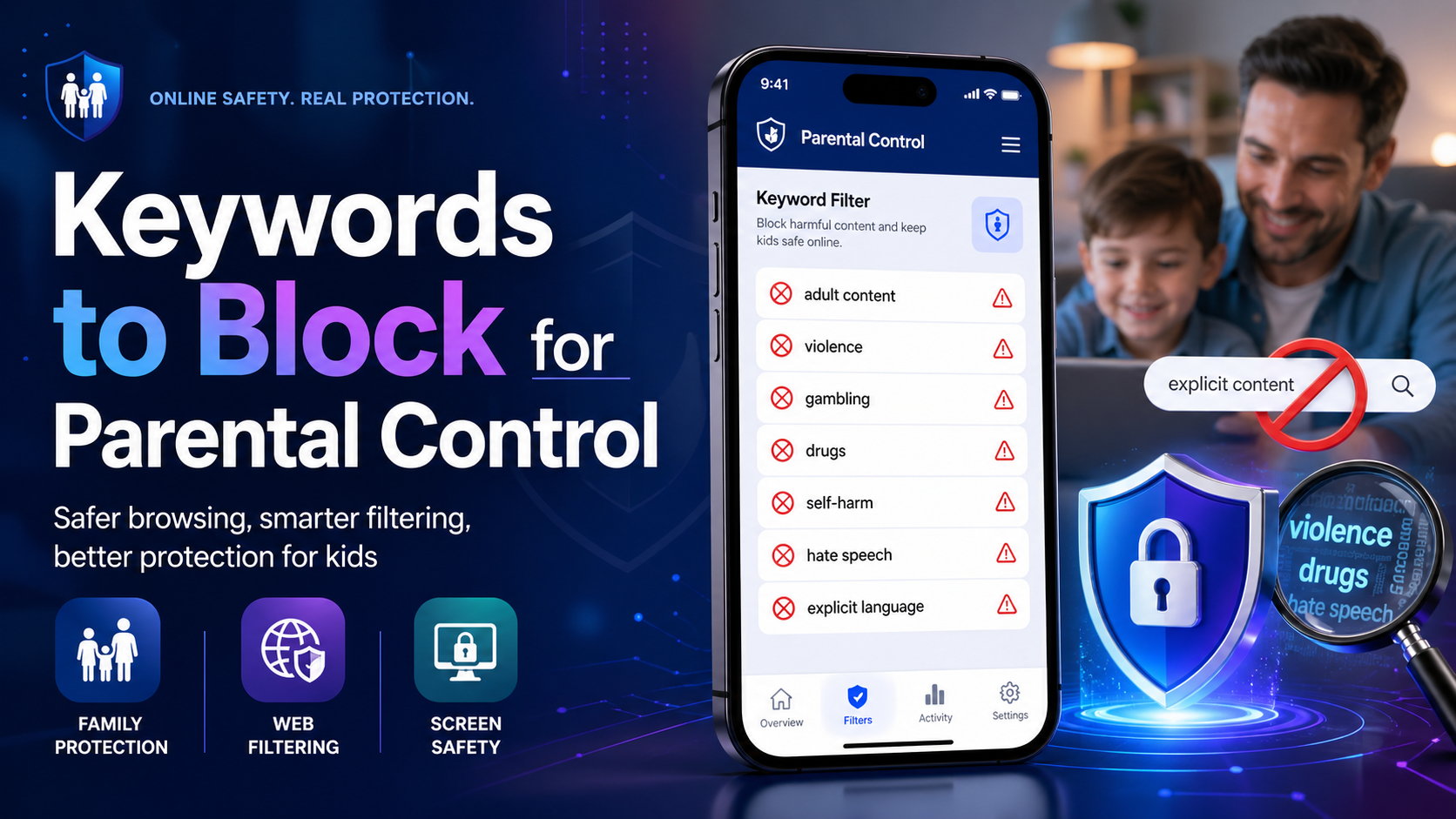
Keywords to block for parental control are words or phrases that trigger a filter when a child searches online, visits a website, watches videos, or uses certain apps.
For example, a parental control tool may block or alert parents when a child searches for terms related to:
- Adult content
- Explicit images or videos
- Gambling
- Drugs
- Weapons
- Violence
- Self-harm
- Dangerous online challenges
- Anonymous chat apps
- Scam or hacking content
Some tools block the content automatically. Others send alerts so parents can review the situation.
Important Note Before You Start ⚠️
Keyword blocking should protect children, not replace parenting.
Children often use slang, misspellings, abbreviations, emojis, or platform-specific terms. A static keyword list can miss new trends or accidentally block harmless educational content.
For example, blocking every medical term may stop a child from finding legitimate health information. Blocking every word related to violence may interfere with history homework or news research.
The best approach is to block high-risk terms, monitor patterns, review false positives, and talk with your child about online safety.
Main Categories of Keywords to Block 🧭
Below are the most useful categories for parental control keyword filtering.
1. Adult Content Keywords
Adult content is usually the first category parents want to block. These keywords may lead to explicit videos, adult websites, sexual chat rooms, or inappropriate images.
Examples of keywords to block:
- porn
- xxx
- nude
- adult videos
- adult chat
- sex chat
- erotic
- explicit content
- live cams
- webcam models
- hookup sites
- escort services
- adult forum
- NSFW
- OnlyFans
- hentai
Parents may also want to block misspellings or variations, because children and websites sometimes use altered spelling to bypass filters.
2. Violent Content Keywords
Violent content can include graphic videos, fighting clips, weapon-related searches, gore, and disturbing material.
Examples:
- gore
- murder videos
- torture
- fighting videos
- violent videos
- shooting videos
- weapon videos
- blood videos
- graphic injury
- crime scene
- war footage
- beheading
- dark web videos
- extreme violence
Use caution here. Some words may appear in legitimate news, school projects, or history assignments. For older children, alert-based monitoring may be better than automatic blocking.
3. Gambling and Betting Keywords 🎲
Online gambling content can appear through casino sites, sports betting ads, crypto betting, and gaming-adjacent platforms.
Examples:
- online casino
- sports betting
- poker online
- roulette
- slot machines
- betting sites
- gambling apps
- free gambling
- crypto betting
- casino bonus
- blackjack online
- lottery hacks
Many parental control tools also allow category-based blocking for gambling, which can be more reliable than keyword blocking alone.
4. Drugs, Alcohol, and Vaping Keywords
Children may encounter drug-related content through social media, search engines, forums, or online shops.
Examples:
- buy drugs online
- vape shop
- weed for sale
- marijuana delivery
- pills online
- cocaine
- heroin
- LSD
- edibles
- drug forum
- how to get high
- fake ID
- alcohol delivery
- vaping tricks
For health-related searches, context matters. If your child is researching addiction, school health topics, or recovery resources, blocking too broadly may hide helpful information.
5. Self-Harm and Crisis-Related Keywords 🕯️
This is one of the most sensitive categories. Blocking can reduce access to harmful content, but parents should also make sure children can still reach crisis support, mental health resources, and trusted adults.
Examples to monitor or block carefully:
- self-harm
- hurt myself
- cutting
- suicide methods
- overdose
- how to disappear
- pro anorexia
- eating disorder tips
- how to starve yourself
- hopeless
- I want to die
- choking game
- blackout challenge
For this category, alerts may be better than silent blocking. If a child searches for these terms, it may be a sign they need support, not punishment. 💙
6. Dangerous Challenges and Risky Trends
Some online trends encourage unsafe stunts, choking games, dares, or extreme pranks.
Examples:
- dangerous challenge
- blackout challenge
- choking game
- fire challenge
- knife challenge
- skull breaker challenge
- tide pod challenge
- dangerous TikTok challenge
- extreme prank
- dare challenge
- hold breath challenge
- jumping challenge
Because trends change quickly, parents should update this list regularly and pay attention to school or community warnings.
7. Online Predator and Anonymous Chat Keywords 🚫
Some searches can lead children toward unsafe conversations with strangers, anonymous chat rooms, or adult spaces disguised as social platforms.
Examples:
- anonymous chat
- random video chat
- chat with strangers
- private chat room
- secret chat app
- disappearing messages
- hidden chat app
- dating app for teens
- meet strangers online
- webcam chat
- Omegle alternatives
Rather than relying only on keywords, parents should also review app permissions, app installs, privacy settings, and communication limits.
8. Hacking, Scams, and Illegal Activity Keywords
Some children search these terms out of curiosity, but they can lead to scams, malware, illegal activity, or unsafe communities.
Examples:
- password hack
- hack account
- free passwords
- stolen credit cards
- phishing tutorial
- cheat engine
- bypass school filter
- fake ID
- dark web
- how to hide apps
- bypass parental controls
- free premium accounts
This category is useful for both blocking and alerts because it may show attempts to bypass family rules.
9. Hate Speech and Extremist Content
Parents may also want to block or monitor terms related to hate groups, extremist propaganda, and harassment.
Because these keywords can be highly specific and change over time, it is often better to use built-in category filters from a reliable parental control tool rather than trying to manually maintain every term.
Useful categories to enable:
- Hate speech
- Extremism
- Weapons
- Harassment
- Violent ideology
- Radicalization content
10. Time-Wasting or Addictive Content Keywords ⏳
Not every keyword block is about danger. Some parents use keyword filters to reduce distraction.
Examples:
- unblocked games
- free games online
- gaming cheats
- endless videos
- prank videos
- celebrity gossip
- livestream fails
- viral drama
Use this category gently. Blocking everything fun can create conflict. It is usually better to set time limits for entertainment rather than block every interest.
Sample Parental Control Keyword List
Here is a simple starter list parents can customize:
| Category | Example Keywords |
|---|---|
| Adult content | porn, xxx, nude, adult chat, explicit content, NSFW |
| Gambling | online casino, sports betting, poker online, slot machines |
| Drugs | buy drugs online, vape shop, pills online, edibles |
| Violence | gore, torture, fighting videos, shooting videos |
| Self-harm | self-harm, cutting, overdose, suicide methods |
| Dangerous trends | blackout challenge, choking game, fire challenge |
| Stranger chat | anonymous chat, chat with strangers, webcam chat |
| Scams/hacking | hack account, password hack, phishing tutorial |
| Bypass terms | bypass parental controls, hide apps, secret apps |
Do not copy this list blindly. Adjust it based on your child’s age, maturity, school needs, and the tools you use.
Where Can You Block Keywords? 🔧
You may be able to block keywords in several places:
- Parental control apps
- Router parental control settings
- Browser extensions
- DNS filtering tools
- YouTube Restricted Mode
- Google SafeSearch
- Microsoft Family Safety
- Apple Screen Time web restrictions
- Android parental control apps
- School device management systems
Some routers only block keywords in URLs, not page content. Some apps monitor search terms but do not block content. Always test your settings after setup.
How to Block Keywords on iPhone
Apple Screen Time does not offer a full custom keyword filter for every app, but you can block adult websites and specific URLs.
Go to:
Settings > Screen Time > Content & Privacy Restrictions > Content Restrictions > Web Content
Then choose:
- Limit Adult Websites
- Or Allowed Websites Only
You can also add specific websites under Never Allow.
For more advanced keyword monitoring, you may need a parental control app that supports alerts or search monitoring.
How to Block Keywords on Android
Android keyword blocking depends on the tool you use. Options may include:
- Google Family Link
- SafeSearch
- Chrome supervised settings
- DNS filters
- Third-party parental control apps
- Router-level filtering
For younger children, combine Google Family Link with SafeSearch and app approval. For older children, consider alerts and conversations instead of heavy blocking.
Keyword Blocking Limitations ⚠️
Keyword blocking is helpful, but it has limits.
Common problems include:
- Kids use slang or misspellings.
- Harmless content gets blocked.
- Harmful content appears without obvious keywords.
- Apps may not share search data with parental tools.
- Encrypted websites limit router-level filtering.
- Social media trends change quickly.
- Older children may find bypass methods.
This is why keyword blocking works best as one layer, not the whole safety plan.
Best Practices for Parents 🌿
Use these tips to make keyword blocking more effective:
- Start with high-risk categories.
- Avoid overblocking normal school or health topics.
- Use SafeSearch and content category filters.
- Review blocked activity weekly.
- Update keywords as trends change.
- Use alerts for mental health terms.
- Talk with your child about why filters exist.
- Combine blocks with screen time limits.
- Use age-appropriate settings.
- Keep the conversation open and calm.
What to Do If a Child Searches a Concerning Keyword
If you see a concerning search, try not to react with anger first.
A calm response is more useful:
“I noticed this came up in your search history. I am not here to shame you. I want to understand what you were looking for and make sure you are safe.”
For self-harm, eating disorder, abuse, or exploitation-related searches, take it seriously and seek professional support when needed.
WordPress Tags
- Parental Control
- Keywords to Block
- Online Safety
- Digital Parenting
- Internet Safety for Kids
- Parental Control Apps
- Block Adult Content
- Safe Browsing
- Screen Time
- Child Online Safety
FAQs
What are the best keywords to block for parental control?
The best keywords to block are terms related to adult content, gambling, drugs, violence, self-harm, dangerous challenges, anonymous chat, scams, and bypassing parental controls.
Should I block every adult keyword?
For younger children, stronger blocking makes sense. For teens, use a mix of blocking, alerts, conversations, and age-appropriate trust.
Can keyword blocking stop all harmful content?
No. Keyword blocking can reduce exposure, but it cannot catch everything. Use it with SafeSearch, app limits, content filters, and family rules.
Should I block self-harm keywords?
Use caution. Blocking harmful instructions may help, but alerts are important because these searches may signal distress. Make sure children can still access crisis support and trusted adults.
Can kids bypass keyword filters?
Yes, some children may use misspellings, slang, VPNs, private browsers, or different apps. That is why parental controls should be combined with communication and supervision.
What is better: keyword blocking or website blocking?
Both help. Website blocking is useful for known unsafe sites, while keyword blocking can catch risky searches or newly discovered content. Category-based filtering is often stronger than either one alone.
Final Thoughts 🛡️
Keywords to block for parental control can help create a safer online space for children, but they should be used thoughtfully.
The goal is not to block every uncomfortable word. The goal is to reduce exposure to harmful content, notice warning signs early, and guide children toward safer digital habits.
Start with the highest-risk categories, test your filters, update them regularly, and keep talking with your child. Technology can help protect kids, but trust, guidance, and calm conversations are what make online safety last.