If your child uses an Android phone or tablet, you have probably wondered how to block inappropriate websites on Android without constantly checking over their shoulder. The good news: you can filter a lot of adult, violent, or unsafe content using free tools built into Android, Google, your router, or simple apps.
This step‑by‑step guide walks you through several effective methods — from quick settings changes to more advanced parental control options — so you can choose the level of protection that fits your family.
1. Turn On Google SafeSearch
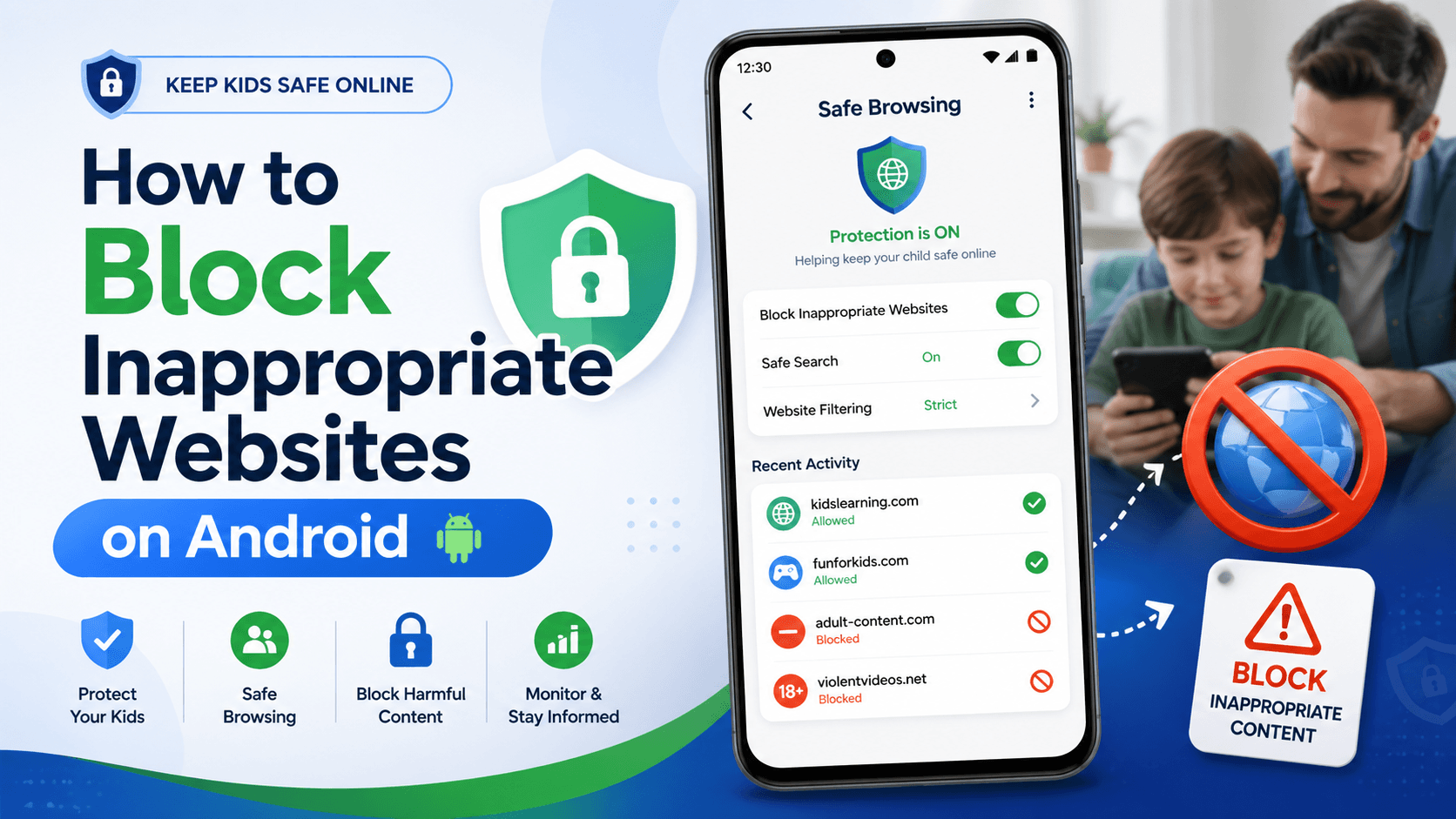
Google’s SafeSearch helps hide explicit results (like adult content and graphic violence) from Google Search results on Android devices.
How to enable SafeSearch on Android
- Open the Google app on your Android device.
- Tap your profile picture in the top‑right corner.
- Go to Settings > SafeSearch.
- Choose Filter (or “Filter explicit results”) to block most inappropriate search results.
Why this helps:
- Works system‑wide for Google Search on that account.
- No extra app needed.
- Great first layer of protection, especially for younger kids.
Note: SafeSearch mainly affects search results. Kids might still reach bad sites through direct links, social media, or other browsers, so you’ll want extra layers.
2. Use Google Family Link for Chrome Filtering
For kids using their own Google account, Google Family Link gives you stronger control over which sites they can visit in Chrome.
Set up Family Link web filters
- Install Google Family Link on your phone and on your child’s Android.
- Create or link a supervised child account.
- In the Family Link app on your phone, tap your child’s profile.
- Go to Controls > Content restrictions > Google Chrome.
- Choose one of these options:
- Allow all sites (no filtering, you only see activity)
- Try to block explicit sites (Google automatically blocks many adult sites)
- Only allow certain sites (whitelist mode – only sites you approve will work)
You can also manually block specific websites:
- In the same Chrome settings, tap Manage sites > Blocked.
- Add the URL(s) of sites you want to block.
This is one of the best free ways to block inappropriate websites on Android for kids, because it combines automatic filtering with manual block/allow lists.
3. Change DNS to a Family Filter (Private DNS / CleanBrowsing / OpenDNS)
Another powerful way to block adult sites on Android is by using a family‑safe DNS provider. These services filter traffic at the network level, blocking domains that host adult or violent content.
Method A: Use Android’s Private DNS (Android 9+)
Many modern Android devices have a Private DNS option.
- Open Settings > Network & Internet (or Connections).
- Look for Private DNS.
- Select Private DNS provider hostname.
- Enter the hostname of a family filter provider, for example:
family-filter-dns.cleanbrowsing.org(CleanBrowsing Family filter)- Or the provider you prefer.
- Save and exit settings.
This routes all DNS requests through a filter that blocks known adult domains, without installing apps.
Method B: Use OpenDNS FamilyShield (via Wi‑Fi DNS)
If Private DNS is not available, you can set DNS on your Wi‑Fi connection:
- Go to Settings > Network & Internet > Wi‑Fi.
- Long‑press your Wi‑Fi network and choose Modify / Edit.
- Switch IP settings to Static.
- Set DNS servers to OpenDNS FamilyShield:
- DNS 1: 208.67.222.123
- DNS 2: 208.67.220.123.
- Save.
Now all traffic over that Wi‑Fi goes through family‑safe DNS that automatically blocks many adult sites.
4. Use a Safe Browser with Built‑In Filters
Instead of trying to lock down every browser, you can install a safe browser that blocks adult content by default and protect it with a PIN.
Some examples mentioned in expert guides:
- SPIN Safe Browser – Android browser designed to block adult content and risky sites out of the box, with optional passcode protection.
- Norton private/safe browsers – part of some security suites, with built‑in malicious site and adult content blocking.
Steps (generic):
- Install a trusted safe browser from Google Play.
- Set it as the default browser on your child’s device.
- Configure filters or lock settings with a password.
- Hide or restrict other browsers (Chrome, Firefox, etc.) using app‑lock tools or parental controls.
This is especially useful if you don’t want to manage dozens of settings, but still want strong browsing protection.
5. Block Websites on Android Using a Parental Control App
If you want more control — like blocking apps, tracking usage, setting time limits, and monitoring activity — a dedicated parental control app for Android can combine everything in one place.
Many tools (e.g., Aura, Bark, Qustodio, etc.) let you:
- Block specific websites or entire categories (adult, gambling, violence)
- Set daily schedules for internet access
- See reports of which sites your child tried to visit
- Apply rules across multiple devices (phones, tablets, computers)
Generic setup flow:
- Choose a reputable parental control app and create an account.
- Install the child app on your kid’s Android device and grant required permissions (accessibility, usage access, VPN profile, etc.).
- On your own device or the web dashboard, open the parent app.
- Go to Web / Content Filtering.
- Turn on filters for adult content and other risky categories.
- Add custom block lists for sites you specifically don’t want them to see.
Parental control apps are harder for kids to bypass than basic settings and give you visibility plus control from one dashboard.
6. Block Inappropriate Websites at the Router Level
If you want to protect every device on your home Wi‑Fi, not just one Android phone, you can block websites at the router level.
There are two common paths:
A. Use your router’s parental controls
Many modern routers have:
- Website filtering / block lists
- Category filters (adult, gambling, violence, etc.)
- Profiles for each family member or device
Basic steps:
- Log into your router’s admin page (address often printed on the router, e.g.,
192.168.0.1). - Find Parental Controls / Website Filtering.
- Turn on content filtering or block list.
- Add specific domains you want to block, or enable built‑in “adult content” filters if available.
- Save settings and reboot router if needed.
B. Use DNS‑based family filters via router
Instead of changing DNS on each Android, point the router itself to family‑safe DNS (OpenDNS FamilyShield, CleanBrowsing, etc.).
Then all devices on that Wi‑Fi inherit the same protections automatically.
7. Combine Device Settings with Good Digital Habits
Learning how to block inappropriate websites on Android is only half the battle. Kids are smart, and even the best filters are not perfect.
To really protect them:
- Talk openly about why some content is off‑limits and what to do if they see something disturbing.
- Set family rules for screen time and what apps/browsers are allowed.
- Encourage your child to tell you if a website, ad, or message makes them uncomfortable — without immediate punishment.
- Regularly review settings on their device and adjust as they grow older.
Technology creates a safety net, but your relationship and communication are what really keep them safe.
Quick Checklist: Fastest Way to Block Adult Sites on Android
If you need a quick setup, here’s a simple stack that works for most families:
- Turn on SafeSearch in the Google app.
- Set up Google Family Link and choose “Try to block explicit sites” in Chrome.
- Change DNS to a family filter using Private DNS or your Wi‑Fi DNS settings.
- Install a safe browser or a parental control app if you want stricter controls or time limits.
With these steps, you significantly reduce the chances that your child will stumble onto harmful content while using an Android device.