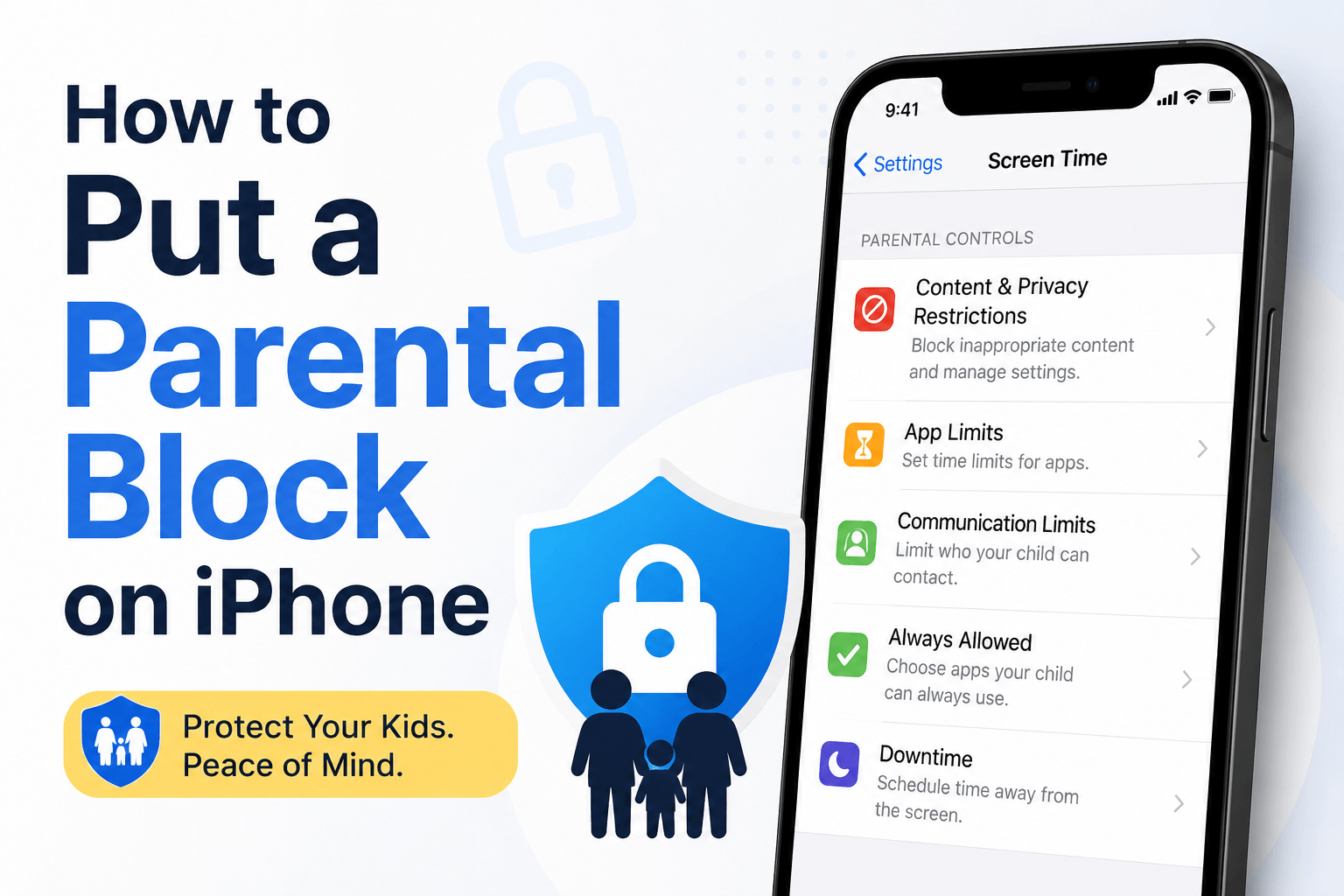

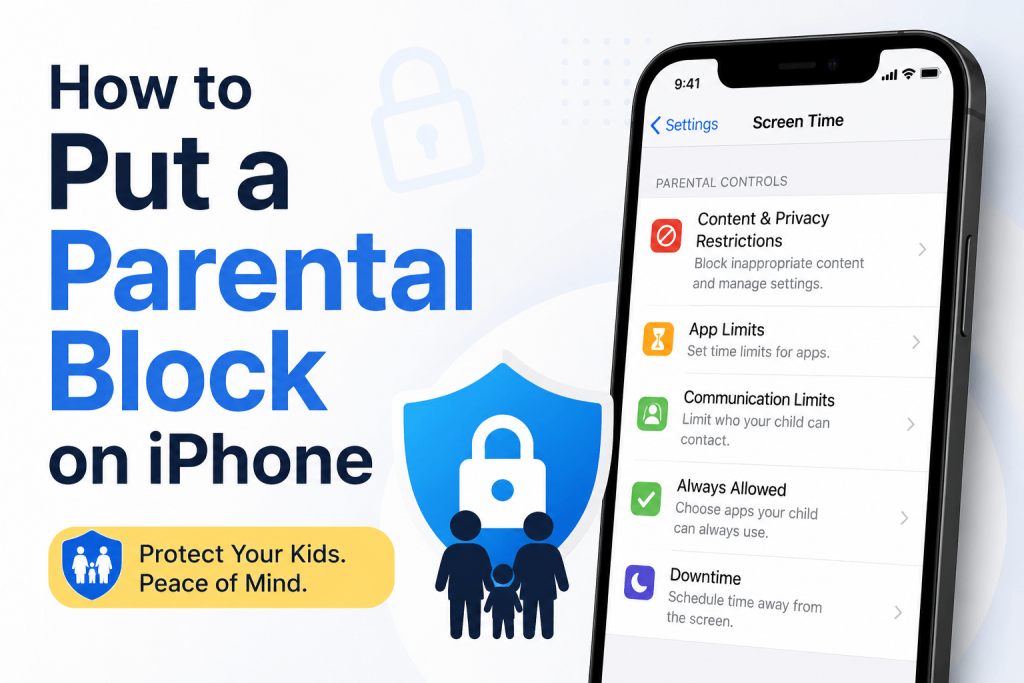
If you want to know how to put a parental block on iPhone, the easiest place to start is Apple’s built-in Screen Time feature.
Screen Time lets parents limit apps, block adult websites, restrict purchases, manage contacts, schedule downtime, and control age-appropriate content. You do not always need a third-party parental control app to create a safer iPhone experience for your child.
The best setup depends on whether you are managing your child’s iPhone from your own device through Family Sharing, or setting restrictions directly on your child’s iPhone. This guide walks you through both options clearly.
Quick Answer: How Do You Put a Parental Block on iPhone?
To put a parental block on iPhone:
- Open Settings.
- Tap Screen Time.
- Turn on Screen Time.
- Set a Screen Time Passcode.
- Tap Content & Privacy Restrictions.
- Turn on Content & Privacy Restrictions.
- Block apps, websites, purchases, explicit content, and privacy changes as needed.
For the best parent-managed setup, use Family Sharing so you can manage your child’s restrictions from your own iPhone.
Why Use iPhone Parental Controls? 🌿
iPhone parental controls can help parents:
- Limit screen time
- Block adult websites
- Restrict explicit content
- Prevent app downloads
- Stop in-app purchases
- Control who your child can communicate with
- Set bedtime or school-time limits
- Block age-inappropriate apps, movies, music, and games
- Add privacy protection for location, photos, contacts, and account changes
Parental controls are not about replacing trust. They work best when paired with calm conversations, clear rules, and age-appropriate independence.
Option 1: Set Up Parental Blocks with Family Sharing
Family Sharing is the best option if your child has their own Apple Account and you want to manage their iPhone from your device.
Step 1: Create or Add Your Child’s Apple Account
On your iPhone:
- Open Settings.
- Tap your name at the top.
- Tap Family or Family Sharing.
- Tap Add Member.
- Follow the steps to create or invite your child’s Apple Account.
Once your child is added to your Family Sharing group, you can manage Screen Time settings remotely.
Step 2: Turn On Screen Time for Your Child
- Open Settings on your iPhone.
- Tap Family.
- Choose your child’s name.
- Tap Screen Time.
- Turn on Screen Time.
- Follow the setup prompts.
- Create a Screen Time passcode your child does not know.
This passcode is important because it prevents your child from changing restrictions.
Option 2: Set Up Parental Blocks Directly on the Child’s iPhone
If you do not use Family Sharing, you can still set restrictions directly on the child’s device.
- Open Settings on the child’s iPhone.
- Tap Screen Time.
- Tap Turn On Screen Time.
- Choose This is My Child’s iPhone if prompted.
- Set up Downtime, App Limits, and Content & Privacy settings.
- Create a Screen Time passcode.
Use a passcode that is different from the iPhone unlock passcode.
How to Block Adult Websites on iPhone 🌐
To block adult websites:
- Open Settings.
- Tap Screen Time.
- Tap Content & Privacy Restrictions.
- Turn on Content & Privacy Restrictions.
- Tap Store, Web, Siri & Game Center Content or Content Restrictions.
- Tap Web Content.
- Choose Limit Adult Websites.
You can also add specific websites:
- Under Never Allow, tap Add Website.
- Enter the website URL you want to block.
For younger children, you can choose Allowed Websites Only and manually approve only safe websites.
How to Block Specific Apps on iPhone 📵
There are a few ways to block apps on iPhone.
Method 1: Use App Limits
- Open Settings.
- Tap Screen Time.
- Tap App Limits.
- Tap Add Limit.
- Choose an app category or specific app.
- Set a time limit.
- Turn on Block at End of Limit.
- Tap Add.
To block an app almost completely, set the daily limit very low, such as 1 minute.
Method 2: Use Content Ratings
You can block apps based on age rating:
- Go to Settings.
- Tap Screen Time.
- Tap Content & Privacy Restrictions.
- Tap Content Restrictions.
- Tap Apps.
- Choose the allowed age rating, such as 4+, 9+, 12+, or 17+.
This helps block apps that are not age-appropriate.
Method 3: Disable Built-In Apps
To block some built-in Apple apps:
- Go to Settings.
- Tap Screen Time.
- Tap Content & Privacy Restrictions.
- Tap Allowed Apps & Features.
- Turn off apps you do not want available.
Depending on iOS version, this may include apps or features like Safari, Camera, FaceTime, SharePlay, Siri, or Wallet.
How to Block App Downloads and Purchases 🛒
To stop your child from installing apps, deleting apps, or making purchases:
- Open Settings.
- Tap Screen Time.
- Tap Content & Privacy Restrictions.
- Tap iTunes & App Store Purchases or App Store, Media, Web & Games.
- Set these to Don’t Allow:
- Installing Apps
- Deleting Apps
- In-app Purchases
You can also require a password for purchases.
If you use Family Sharing, turn on Ask to Buy so your child must request permission before downloading apps or buying content.
How to Set Downtime on iPhone 🌙
Downtime lets you schedule time away from the phone, such as bedtime, homework time, or family dinner.
- Open Settings.
- Tap Screen Time.
- Tap Downtime.
- Turn on Scheduled.
- Choose the start and end time.
- Turn on Block at Downtime if available.
During Downtime, only allowed apps and contacts remain available.
How to Allow Only Certain Apps
If you want some apps to work during Downtime:
- Open Settings.
- Tap Screen Time.
- Tap Always Allowed.
- Add or remove apps from the list.
For example, you might allow:
- Phone
- Messages to parents
- Maps
- School apps
- Calendar
- Health or safety apps
Be careful not to leave entertainment apps in Always Allowed unless you truly want them available all the time.
How to Set Communication Limits 📞
Communication Limits let you manage who your child can contact through Phone, FaceTime, Messages, and iCloud contacts.
- Open Settings.
- Tap Screen Time.
- Tap Communication Limits.
- Choose limits for:
- During Screen Time
- During Downtime
- Select whether your child can communicate with everyone, contacts only, or specific contacts.
This can help younger children stay connected to parents while reducing unwanted contact.
How to Block Explicit Music, Movies, TV, and Books 🎧
To restrict explicit or age-inappropriate content:
- Open Settings.
- Tap Screen Time.
- Tap Content & Privacy Restrictions.
- Tap Content Restrictions.
- Choose limits for:
- Music, Podcasts, News, Fitness
- Movies
- TV Shows
- Books
- Apps
- Web Content
- Siri
- Game Center
Set each category based on your child’s age and maturity.
How to Block Siri Web Search and Explicit Language
To limit Siri:
- Go to Settings.
- Tap Screen Time.
- Tap Content & Privacy Restrictions.
- Tap Content Restrictions.
- Under Siri, restrict:
- Web Search Content
- Explicit Language
This helps reduce exposure to inappropriate search results and explicit responses.
How to Stop Account and Passcode Changes 🔒
To prevent your child from changing important settings:
- Open Settings.
- Tap Screen Time.
- Tap Content & Privacy Restrictions.
- Scroll to Allow Changes.
- Set restrictions for:
- Passcode Changes
- Account Changes
- Cellular Data Changes
- Volume Limit
- Location Sharing
- Contacts
- Photos
- Bluetooth
- Microphone
- Camera
This is useful if your child tries to change Apple Account settings, disable location sharing, or modify privacy permissions.
How to Block Specific Websites on iPhone
To block a specific website:
- Go to Settings.
- Tap Screen Time.
- Tap Content & Privacy Restrictions.
- Tap Content Restrictions.
- Tap Web Content.
- Choose Limit Adult Websites.
- Under Never Allow, tap Add Website.
- Enter the website URL.
Add both common versions if needed, such as:
- example.com
- www.example.com
- m.example.com
This can help reduce simple bypasses.
How to Use “Allowed Websites Only”
For younger children, Allowed Websites Only is stricter than blocking adult content.
- Go to Web Content.
- Choose Allowed Websites Only.
- Add websites you approve.
- Remove any websites you do not want allowed.
This creates a safer browsing environment, but it may be too restrictive for older children or school research.
How to Block Social Media Apps 📱
To block or limit social media apps:
- Open Settings.
- Tap Screen Time.
- Tap App Limits.
- Tap Add Limit.
- Choose Social or select specific apps.
- Set a time limit.
- Turn on Block at End of Limit.
You can also use age ratings or disable app installation to prevent new social apps from being downloaded.
How to Prevent Kids from Bypassing Screen Time
Screen Time is useful, but it is not perfect. To make it stronger:
- Use a Screen Time passcode your child does not know.
- Do not reuse the device unlock passcode.
- Turn on Block at End of Limit.
- Turn on Block at Downtime.
- Remove unnecessary apps from Always Allowed.
- Restrict account changes.
- Restrict passcode changes.
- Restrict app installs and deletion.
- Keep iOS updated.
- Check settings regularly.
For older teens, combine restrictions with clear rules and conversations. Technical controls work better when expectations are understood.
What If Your Child Requests More Time?
If your child reaches an app limit, they may request more time. With Family Sharing, you can approve or deny requests from your own device.
This can be useful when:
- Homework requires more time
- A school app gets blocked
- Travel or emergencies require flexibility
- You want to reward responsible behavior
Try to keep rules consistent, but leave room for real-life situations.
Best Parental Block Settings by Age
Younger Children
Recommended settings:
- Allowed Websites Only
- App downloads blocked or Ask to Buy enabled
- Strict age ratings
- Downtime at bedtime
- Communication limited to approved contacts
- App Limits for games and videos
Tweens
Recommended settings:
- Limit Adult Websites
- App Limits for entertainment and social apps
- Ask to Buy enabled
- Content ratings based on maturity
- Downtime during school and sleep hours
- Communication Limits if needed
Teens
Recommended settings:
- Limit Adult Websites
- App Limits with discussion
- Downtime at night
- Privacy restrictions for safety
- Ask to Buy depending on trust and age
- Clear family rules about social media and privacy
For teens, transparency matters. Explain why the settings exist and revisit them as your child shows responsibility.
Built-In iPhone Controls vs. Third-Party Parental Control Apps
Apple’s built-in controls are a strong first step because they are free and already built into iOS.
They are good for:
- App limits
- Downtime
- Content ratings
- Website restrictions
- Purchase controls
- Communication limits
- Family Sharing management
Third-party apps may offer extra features like:
- More detailed activity reports
- Cross-platform monitoring
- Location alerts
- Social media alerts
- Keyword alerts
However, third-party apps can raise privacy, cost, and reliability concerns. For most families, it is best to start with Apple Screen Time first.
Common Problems and Fixes
Screen Time Limit Can Be Ignored
Check that Block at End of Limit is turned on. Without it, the limit may act more like a reminder than a block.
Downtime Is Not Blocking Apps
Check that Block at Downtime is turned on and remove distracting apps from Always Allowed.
Child Can Download Apps
Turn off Installing Apps or enable Ask to Buy through Family Sharing.
Child Can Change Settings
Restrict Account Changes, Passcode Changes, and other privacy settings under Content & Privacy Restrictions.
Websites Are Still Loading
Add specific domains to the Never Allow list. Include www and mobile versions if needed.
FAQs
How do I put a parental block on iPhone?
Use Screen Time. Go to Settings > Screen Time > Content & Privacy Restrictions, turn restrictions on, then block apps, websites, purchases, content, and privacy changes.
Can I block adult websites on my child’s iPhone?
Yes. Go to Settings > Screen Time > Content & Privacy Restrictions > Content Restrictions > Web Content, then choose Limit Adult Websites or Allowed Websites Only.
Can I block apps on iPhone parental controls?
Yes. Use App Limits, age ratings, or Allowed Apps & Features to limit or block apps.
Can I manage my child’s iPhone from my phone?
Yes, if you use Family Sharing and add your child’s Apple Account to your family group.
Is Screen Time enough for parental control?
For many families, yes. Screen Time covers app limits, website blocking, content restrictions, purchase controls, communication limits, and Downtime. Some families may still choose third-party apps for extra reporting or cross-platform features.
Can my child bypass Screen Time?
Screen Time can sometimes be bypassed if settings are weak. Use a strong Screen Time passcode, enable Block at End of Limit, restrict account changes, and check settings regularly.
Final Thoughts 🛡️
Learning how to put a parental block on iPhone is mostly about using Screen Time the right way.
Start with Family Sharing if possible, set a Screen Time passcode, turn on Content & Privacy Restrictions, then add app limits, website blocks, purchase controls, and Downtime based on your child’s age.
The goal is not to control every moment. The goal is to create safer boundaries while helping your child build healthier digital habits over time.